
Have you ever wanted to adjust the resolution of your Mac display but weren’t sure how? Changing your Mac display’s resolution can help improve readability, optimize visual content, or accommodate external displays. In this article, I will guide you through the process of changing your Mac display’s resolution step by step.
Accessing System Preferences
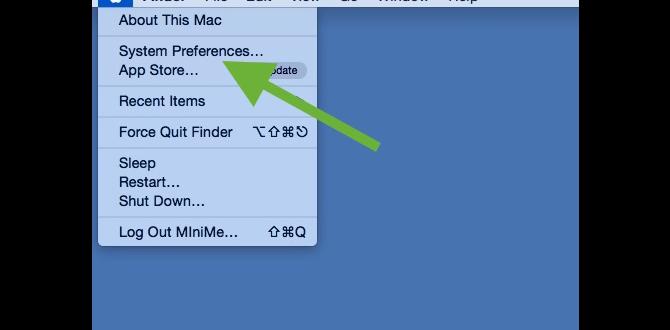
To change the display resolution on your Mac, you need to access the System Preferences. Here’s how:
1. Opening the System Preferences
Click on the Apple menu located in the top-left corner of your screen and select “System Preferences” from the drop-down menu. Alternatively, you can use the Spotlight search by pressing Command + Space and typing “System Preferences,” then hit Enter to open it.
Adjusting Display Resolution
Now that we have accessed the System Preferences, we can proceed to adjust the display resolution. Follow these steps:
1. Navigating to the Display Settings
Within the System Preferences window, locate and click on the “Displays” icon. This will open the display settings for your Mac.
2. Selecting the Resolution Options
In the Display settings, navigate to the “Display” tab if it’s not already selected. Here you will see a list of available resolutions for your Mac display. Choose a resolution from the options provided.
3. Applying the New Resolution
Once you have selected the desired resolution, click on the “Apply” button. Your Mac display will now adjust to the new resolution.
Testing the New Resolution

After changing the display resolution, it’s essential to test and ensure that the new settings meet your requirements. Here’s how:
1. Verifying the Display Changes
Take a moment to examine your Mac display and verify if the new resolution has been successfully applied. Check if the content appears clearer and more visually satisfying at the new resolution.
2. Making Further Adjustments
If the new resolution doesn’t meet your expectations, you can repeat the steps above to choose a different resolution. Experiment with various options until you find the resolution that offers the best visual experience for your needs.
Troubleshooting Issues
If you encounter issues while changing your Mac display’s resolution, here are some troubleshooting tips:
1. Resolving Incompatibility Problems
Occasionally, certain resolutions may not be compatible with your specific Mac model or external display. In such cases, try selecting a different resolution or consult Apple Support for further assistance.
2. Restoring the Original Resolution
If you wish to revert to the original resolution settings, open the Display settings again, select the previous resolution, and click on “Apply.” This will restore your Mac display to its original resolution.
Tips and Recommendations

Consider the following tips and recommendations for optimum resolution settings:
1. Maintaining Optimal Resolution Settings
Choosing the appropriate resolution for your Mac display helps maintain optimal image sharpness, clarity, and readability. Select a resolution that balances these factors to enhance your overall viewing experience.
2. Adjusting for External Displays
If you connect your Mac to an external display, it’s recommended to check the resolution settings for that display as well. Adjust the resolution on the external display to match your preferences or the capabilities of the connected display.
3. Considering Performance Impact
Keep in mind that increasing your display’s resolution may have an impact on system performance, especially if you have an older Mac model or are running resource-intensive applications. Consider the performance implications when selecting a higher resolution.
Additional Resources and Support
If you require further assistance or have specific questions regarding changing your Mac display’s resolution, consider the following resources:
1. Seeking Help from Apple Support
Reach out to Apple Support by visiting the official Apple website or contacting their helpline. Apple Support representatives will be able to provide tailored guidance and solutions based on your specific Mac model.
2. Exploring Online Communities and Forums
Joining Mac-related online communities and forums can provide valuable insights and peer support. Engage with fellow Mac users to share experiences, ask questions, and gather additional tips and tricks.
Conclusion
Adjusting your Mac display’s resolution is a simple yet effective way to optimize your visual experience. By accessing the System Preferences, navigating to the Display settings, and selecting the appropriate resolution, you can enhance image quality, readability, and overall viewing pleasure. Experiment with different resolutions, consider performance impact, and consult support resources for further guidance. Enjoy your Mac display at its best!
FAQs
Q: Can I change my Mac display’s resolution while using an external monitor?
Yes, you can adjust the resolution for both your Mac’s built-in display and any connected external monitors. Simply access the Display settings in System Preferences and choose the desired resolution for each display.
Q: Will changing the display resolution affect the size of my icons and text?
Yes, adjusting the display resolution can impact the size of icons and text on your Mac. Higher resolutions may make them appear smaller, while lower resolutions may make them larger. You can further customize the size of icons and text in the “Displays” section of System Preferences.
Q: What if I can’t find my preferred resolution in the Display settings?
If your preferred resolution is not available in the Display settings, it could be due to compatibility limitations. In such cases, you may need to consider third-party software or consult Apple Support for alternative resolutions or workarounds.
Q: Will changing the display resolution affect the performance of my Mac?
Increasing the display resolution can impact system performance, especially if you have an older Mac model or are running resource-intensive tasks. Higher resolutions require more graphical processing power, which may lead to slower performance or reduced frame rates in certain applications.
Q: Can I use custom resolutions on my Mac?
By default, Mac offers a range of predefined resolutions to choose from. While it is possible to create and use custom resolutions, this requires advanced technical knowledge and may not be supported on all Mac models. It’s recommended to consult official documentation or Apple Support for guidance on creating and using custom resolutions.